Connect GitHub Issues, GitLab Issues, Jira or Linear
Route selected issues into a workflow, grant permission for progress comments, register a signed webhook where required, and verify an issue reached the right station.
/
Open Factory settings → Plugins as a workspace owner or admin. Choose a triage station, and give the connection a descriptive name. Use a separate project or a narrowly used label for the first delivery.
GitHub and GitLab
- Attach the repository to the destination workflow. GitHub uses the repository approved through Bookbag; GitLab uses the workflow's GitLab connection. A repository attached only to another workflow will not appear in this list.
- Switch on GitHub Issues or GitLab Issues, select the workflow, station and repository, then enter the required Label. The default is
codebook. Create or choose the matching label at the host. - Save, then Test. For GitHub, CodeBook needs Bookbag's issues profile and the account owner must have accepted the GitHub App's Issues permission. These are separate: contact a Bookbag platform administrator for a profile refusal, and the GitHub account owner for a pending installation permission. A test can confirm permission to comment; the app installation must also deliver issue events.
- For GitLab, Test checks the connection and the project's existing webhook, updating the hook to subscribe to issues and comments when possible. If repair fails, check the token's permission to manage project webhooks (typically a Maintainer) and re-register it through the repository settings. See GitLab project webhooks.
- In the selected repository, apply your label to an open test issue. Find a story referencing that issue at the selected station. Follow it through a workflow transition and check the original issue for a progress comment. A story with no comment points to a reporting-permission problem; no story points first to the event subscription, repository or label.
Jira
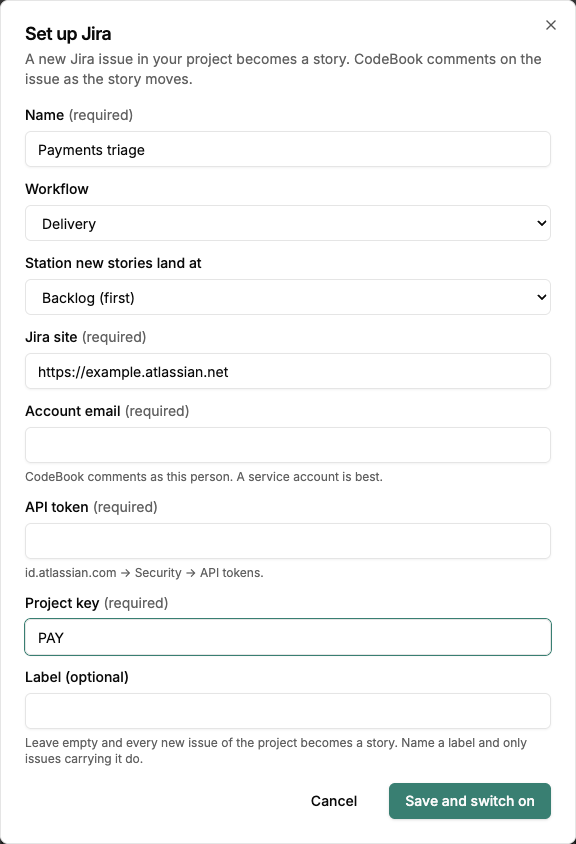
- Choose the Jira tile, workflow and station. Enter the Jira site (for example,
https://example.atlassian.net), the Account email and its API token. Use an account that can read the project and add comments. Its identity appears on comments. - Enter the Project key (for
PAY-12, enterPAY). An empty optional label accepts eligible issues throughout that project; set a label if only some should reach the station. - Save and copy the displayed URL and one-time Webhook secret. Have a Jira administrator register a Jira Cloud webhook with that URL and secret. Select Issue created, Issue updated and Comment created. Limit the webhook's JQL to your project, e.g.
project = PAY. - Click Test in CodeBook and check the identity and project it reports. Create an open issue in that project with the configured label, if any. Open the resulting story, then add a comment to the linked issue to verify the conversation follows it.
Linear
- Choose Linear, workflow and station. Enter the Team key (for
ENG-12, enterENG), an optional label and a personal API key whose account can read the team and add comments. - Save to obtain CodeBook's inbound address. On this first save you may leave Webhook signing secret empty: the connection stays off until it has one.
- Ask a Linear workspace admin to create a webhook with the displayed URL, Issues and Comments events, and the same team. Copy the signing secret from that webhook.
- Reopen Set up on the named connection, paste the secret, save, and confirm it is on. Run Test, then create one matching issue. Check that it arrives once, that a comment on the issue reaches the story, and that progress can be posted back.
If a vendor reports a failed delivery, use the address and signing secret from the same connection. When CI, a repository, or a knowledge source is already connected, issue intake still needs its own plugin configuration.